
Pi Studio Activity Bookmarklet
Date: 2026-05-07
Pi Studio Activity is a lightweight JavaScript bookmarklet that automatically manages the Ollama Pi package Pi-Studio response view modes. It eliminates the manual friction of switching between "Working" (raw token stream) and "Preview" (formatted markdown) views, providing a seamless, hands-free experience during AI interactions.
The Problem It Solves
Ollama Pi Studio is a powerful interface for local LLMs (Large Language Models), but it requires manual view management during response generation. By default, users must:
- Click "Raw" or "Working" when generation starts to see live tokens
- Click "Preview" when generation completes to see formatted output
The Bookmarklet automatically switches to Working and Preview modes at the right times, without extra clicks.
Demo
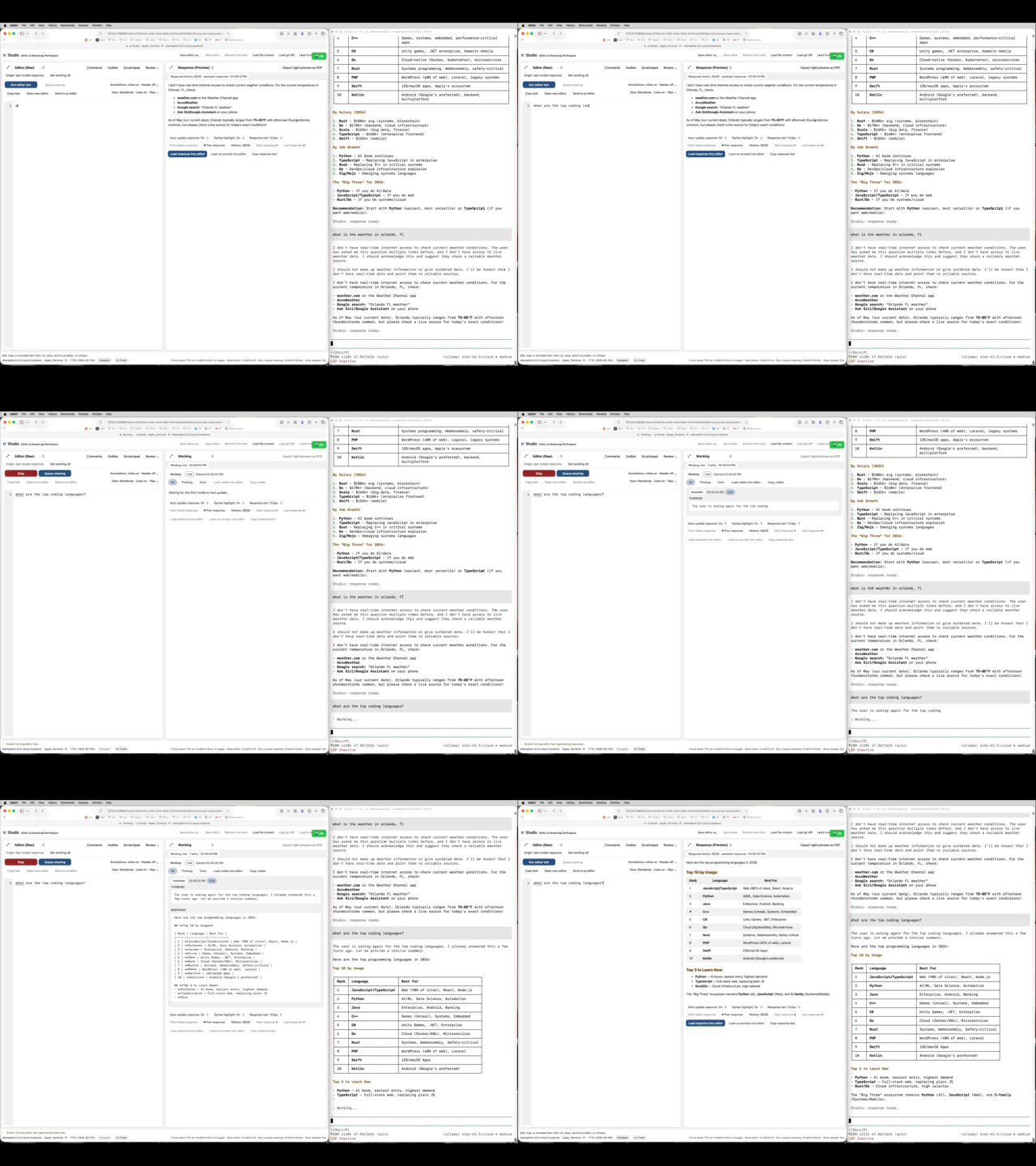
2026-05-08 Update!
I'n not a fan of the side by side layout preferring the vertical terminal like layout. I added another version of the javascript below, but it won't run as a bookmarklet. Instead, it needs to be pasted into the javascript console via browser dev tools or similar. I'm using a Mac Automator script also included below.
The Solution
Pi Studio Activity automatically:
- Detects when the AI begins generating a response
- Instantly switches to "Working" view to show live token streaming
- Watches for generation completion
- Automatically switches to "Preview" when the response is done
Technical Implementation
The bookmarklet implements a non-invasive DOM monitoring pattern:
-
Status Element Polling: Monitors the
#statusHTML element in the Pi Studio interface, which contains the text "Edit, load, or annotate text, then run, save, send to pi editor, or critique" when idle. -
Dropdown Manipulation: When this status changes (indicating generation has started), it programmatically sets the
rightViewSelectdropdown value to'trace'(Working view) and dispatches a change event. -
Idle Detection: When the status returns to the idle state, it switches the dropdown to
'preview'(Preview view). -
UI Feedback: Displays a floating green "🤖 ON" badge in the top-right corner, which users can click to disable the auto-toggle.
Key Features
- Zero Configuration: Works immediately upon activation, no setup required
- Non-Destructive: Doesn't modify Pi Studio's core functionality; uses event dispatching
- Toggle Control: One-click enable/disable via the floating badge
- Browser Native: Pure JavaScript, no extensions or plugins required
- Cross-Platform: Works on macOS, Windows, and Linux in Safari, Chrome, Firefox
Usage Instructions
- Create a bookmark with the JavaScript code as the URL
- Navigate to Ollama Pi Studio (http://127.0.0.1:port/)
- Click the bookmark to activate (green "🤖 ON" badge appears)
- Type a prompt in the editor and press Cmd+Enter (Mac) or Ctrl+Enter (Windows)
- Watch as the view automatically switches to Working during generation
- It automatically switches to Preview when done
- Click the green badge to disable
Horizontal vs Vertical Layouts
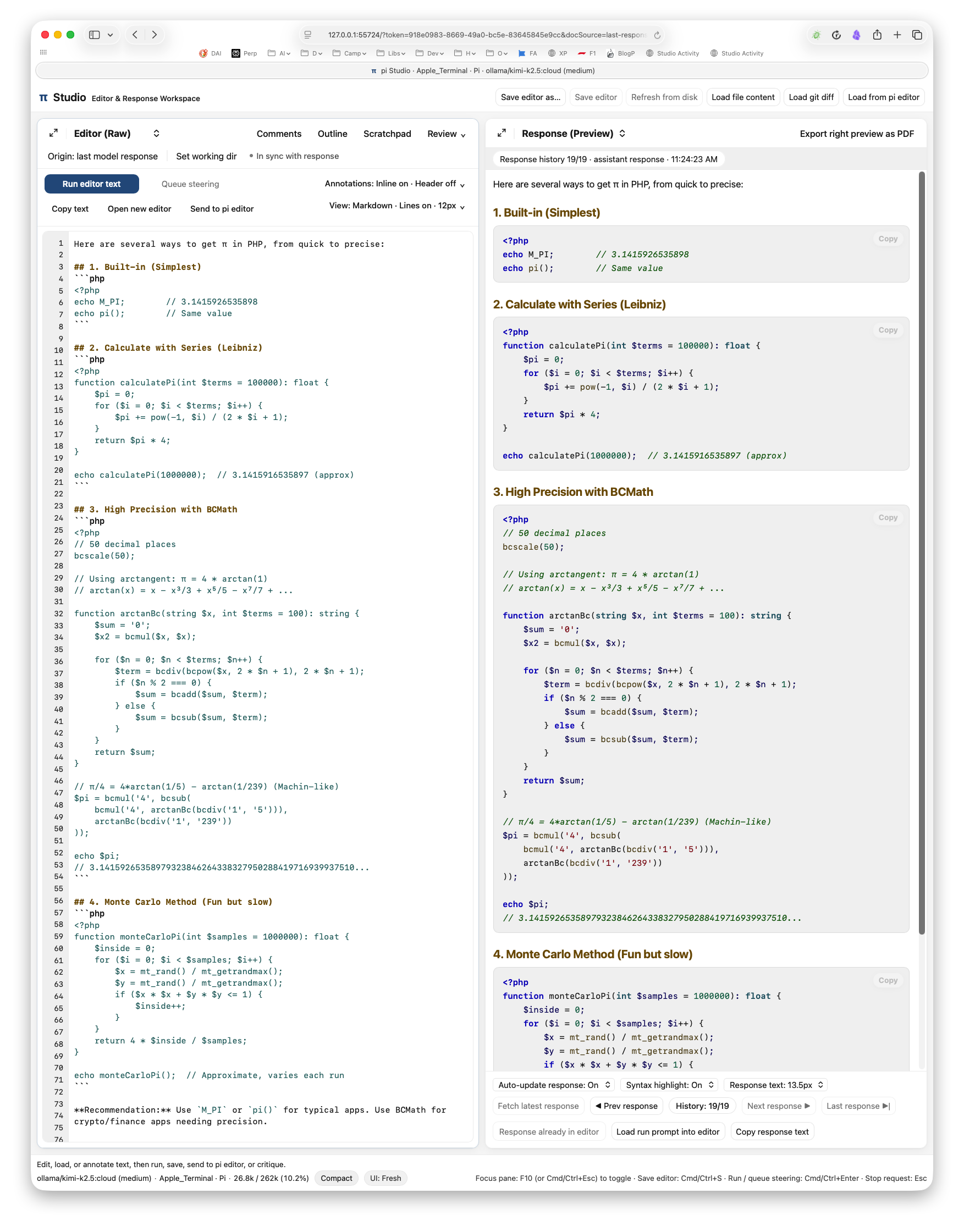
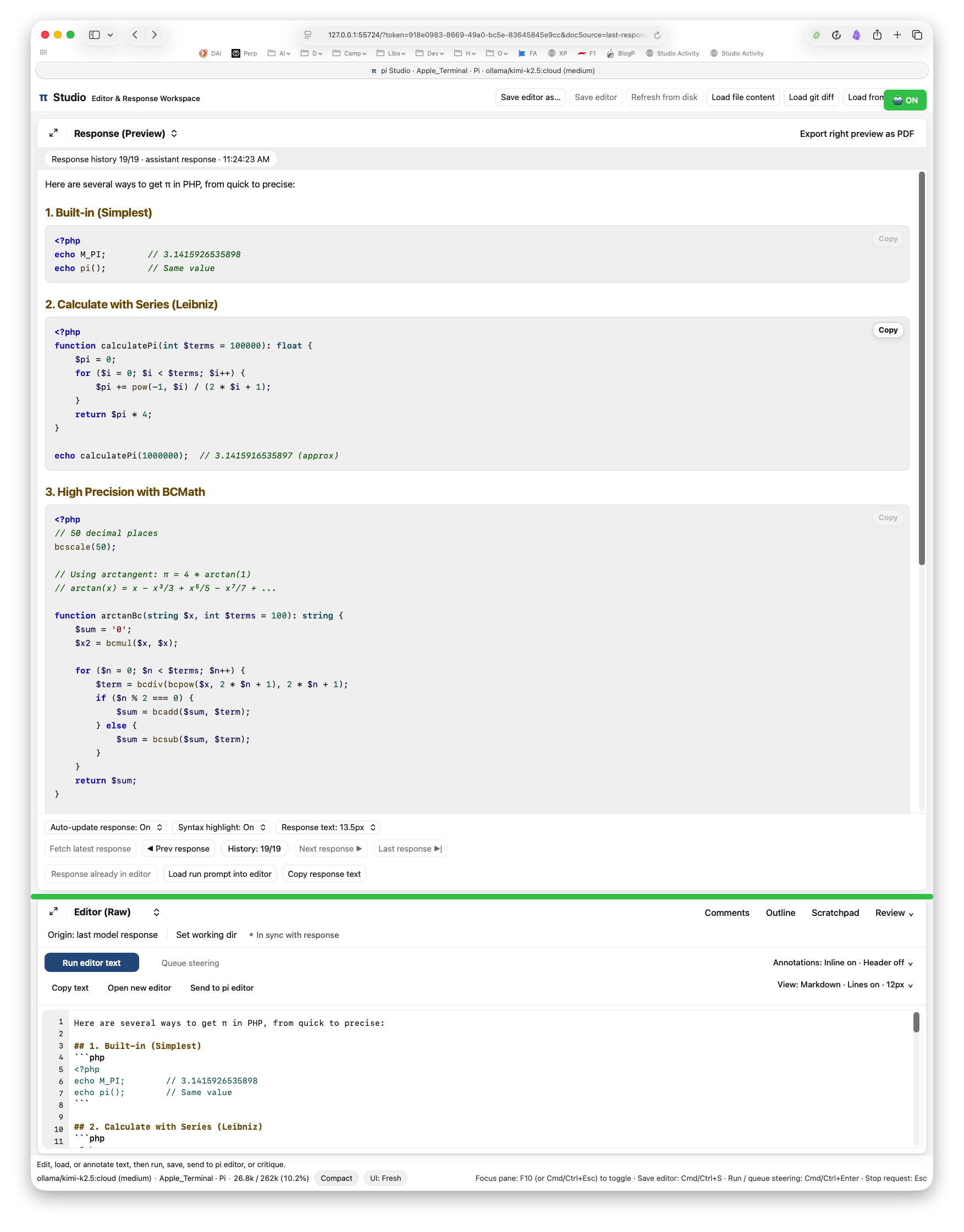
Horizontal Activity - Bookmarklet
javascript:(function(){var lastStatus='';if(window.statusCheckTimer)clearInterval(window.statusCheckTimer);window.statusCheckTimer=setInterval(function(){var statusEl=document.getElementById('status');var sel=document.getElementById('rightViewSelect');if(!statusEl||!sel)return;var statusText=statusEl.textContent||'';var isIdle=statusText.includes('Edit, load, or annotate');if(!isIdle&&sel.value!=='trace'){sel.value='trace';sel.dispatchEvent(new Event('change'));console.log('→ Working');}if(isIdle&&sel.value==='trace'){sel.value='preview';sel.dispatchEvent(new Event('change'));console.log('→ Preview');}},300);var badge=document.createElement('div');badge.innerHTML='🤖 ON';badge.style.cssText='position:fixed;top:10px;right:10px;background:#34C759;color:white;padding:8px 12px;border-radius:6px;z-index:9999;font-size:12px;font-weight:600;cursor:pointer;';badge.onclick=function(){clearInterval(window.statusCheckTimer);badge.remove();console.log('Auto-toggle stopped');};document.body.appendChild(badge);console.log('Auto-toggle active! Click badge to stop.');})();Vertical Activity - Automator using Applescript
tell application "Safari"
    activate
    tell front document
        do JavaScript "var lastStatus='';if(window.statusCheckTimer)clearInterval(window.statusCheckTimer);window.statusCheckTimer=setInterval(function(){var statusEl=document.getElementById('status');var sel=document.getElementById('rightViewSelect');if(!statusEl||!sel)return;var statusText=statusEl.textContent||'';var isIdle=statusText.includes('Edit, load, or annotate');if(!isIdle&&sel.value!=='trace'){sel.value='trace';sel.dispatchEvent(new Event('change'));console.log('→ Working');}if(isIdle&&sel.value==='trace'){sel.value='preview';sel.dispatchEvent(new Event('change'));console.log('→ Preview');}},300);var m=document.querySelector('main');m.style.cssText='display:flex!important;flex-direction:column!important;height:calc(100vh - 100px)!important;position:relative!important;';document.getElementById('leftPane').style.cssText='order:2!important;height:25%!important;width:100%!important;flex:none!important;min-height:100px!important;';document.getElementById('rightPane').style.cssText='order:1!important;height:75%!important;width:100%!important;flex:none!important;';var resizer=document.createElement('div');resizer.style.cssText='position:absolute;left:0;right:0;height:8px;background:#34C759;cursor:row-resize;z-index:9999;top:75%;border-radius:4px;';var dragging=false;resizer.addEventListener('mousedown',function(e){dragging=true;e.preventDefault();m.style.pointerEvents='none';});document.addEventListener('mousemove',function(e){if(!dragging)return;var rect=m.getBoundingClientRect();var pct=((e.clientY-rect.top)/rect.height)*100;pct=Math.max(20,Math.min(80,pct));resizer.style.top=pct+'%';document.getElementById('rightPane').style.height=pct+'%';document.getElementById('leftPane').style.height=(100-pct)+'%';});document.addEventListener('mouseup',function(){dragging=false;m.style.pointerEvents='';});m.appendChild(resizer);var badge=document.createElement('div');badge.innerHTML='🤖 ON';badge.style.cssText='position:fixed;top:10px;right:10px;background:#34C759;color:white;padding:8px 12px;border-radius:6px;z-index:10000;font-size:12px;font-weight:600;cursor:pointer;';badge.onclick=function(){clearInterval(window.statusCheckTimer);badge.remove();resizer.remove();console.log('Stopped');};document.body.appendChild(badge);console.log('✅ Editor 25% + Response 75% + Auto-toggle!');"
    end tell
end tell

display notification "Pi Studio Activity - Editor 25%" with title "🤖 ON"
Vertical Activity - Paste into the browser developer console.
var lastStatus='';if(window.statusCheckTimer)clearInterval(window.statusCheckTimer);window.statusCheckTimer=setInterval(function(){var statusEl=document.getElementById('status');var sel=document.getElementById('rightViewSelect');if(!statusEl||!sel)return;var statusText=statusEl.textContent||'';var isIdle=statusText.includes('Edit, load, or annotate');if(!isIdle&&sel.value!=='trace'){sel.value='trace';sel.dispatchEvent(new Event('change'));console.log('→ Working');}if(isIdle&&sel.value==='trace'){sel.value='preview';sel.dispatchEvent(new Event('change'));console.log('→ Preview');}},300);var m=document.querySelector('main');m.style.cssText='display:flex!important;flex-direction:column!important;height:calc(100vh - 100px)!important;position:relative!important;';document.getElementById('leftPane').style.cssText='order:2!important;height:25%!important;width:100%!important;flex:none!important;min-height:100px!important;';document.getElementById('rightPane').style.cssText='order:1!important;height:75%!important;width:100%!important;flex:none!important;';var resizer=document.createElement('div');resizer.style.cssText='position:absolute;left:0;right:0;height:8px;background:#34C759;cursor:row-resize;z-index:9999;top:75%;border-radius:4px;';var dragging=false;resizer.addEventListener('mousedown',function(e){dragging=true;e.preventDefault();m.style.pointerEvents='none';});document.addEventListener('mousemove',function(e){if(!dragging)return;var rect=m.getBoundingClientRect();var pct=((e.clientY-rect.top)/rect.height)*100;pct=Math.max(20,Math.min(80,pct));resizer.style.top=pct+'%';document.getElementById('rightPane').style.height=pct+'%';document.getElementById('leftPane').style.height=(100-pct)+'%';});document.addEventListener('mouseup',function(){dragging=false;m.style.pointerEvents='';});m.appendChild(resizer);var badge=document.createElement('div');badge.innerHTML='🤖 ON';badge.style.cssText='position:fixed;top:10px;right:10px;background:#34C759;color:white;padding:8px 12px;border-radius:6px;z-index:10000;font-size:12px;font-weight:600;cursor:pointer;';badge.onclick=function(){clearInterval(window.statusCheckTimer);badge.remove();resizer.remove();console.log('Stopped');};document.body.appendChild(badge);console.log('✅ Editor 25% + Response 75% + Auto-toggle!');